|
|
GemeShare is a revolutionary website that allows you to search or advertise gemstones around the world.
The GemeShare is based on the Gemewizard gemstones color technology.
|
Using the search engine:
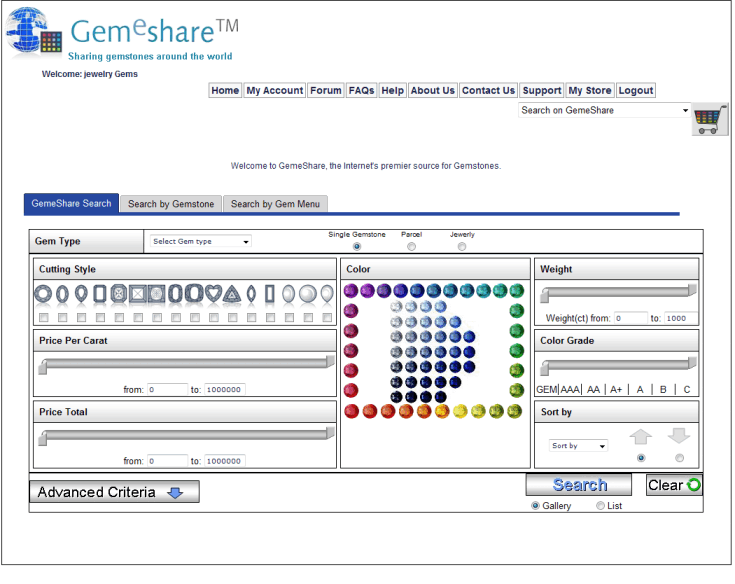
1.Begin your search by selecting the Gemstone type.
2.Select the item category type (single gemstone, parcel or jewelry). For jewelry items, you can also select a sub-category.
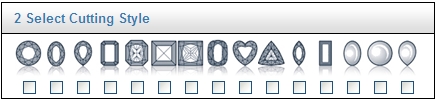
3.Select the desired shape or cutting style of the gemstone. If all checkboxes are left unchecked, the search engine will look for all shapes and cutting styles.
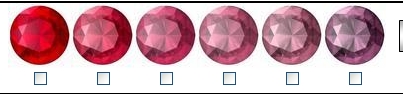
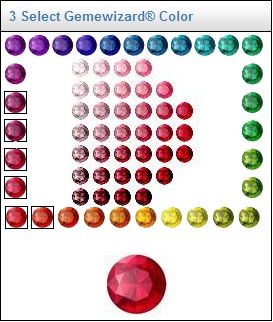
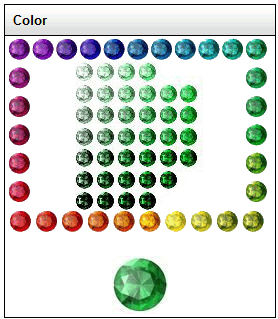
4.Select the desired gemstone color from a ruler of colors associated to this gemstone or from the GemeSquare™ of colors (where the associated hues are framed). Click on the hue closest to the color of your gemstone and then click on one of the tone/saturation combinations at the center of the square. The selected color will be shown under the square of colors.
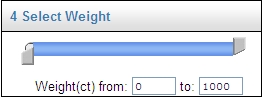
5.Select the weight range of the gemstone by moving the bar limits or filling the fields below.
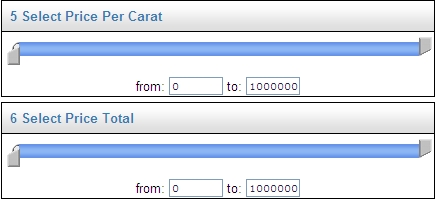
6.Select the price per carat range of the gemstone by moving the bar limits or filling the fields below.
7.Select the price total range of the gemstone by moving the bar limits or filling the fields below.
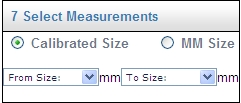
8.Select the measurements range of the gemstone by selecting calibrated sizes (for a specific gemstone and shape/cutting-style) or by filling mm sizes range.
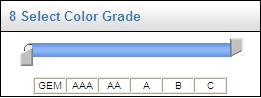
9.Select the color grade range of the gemstone by moving the bar limits.
10.Additional parameters, such as treatments and certificates, are found by clicking on the advanced criteria button.
11.Below the Search button, select how you prefer to see the search results: as a gallery or as a list.
12.When all parameters were defined, click on the Search button.
Search results:
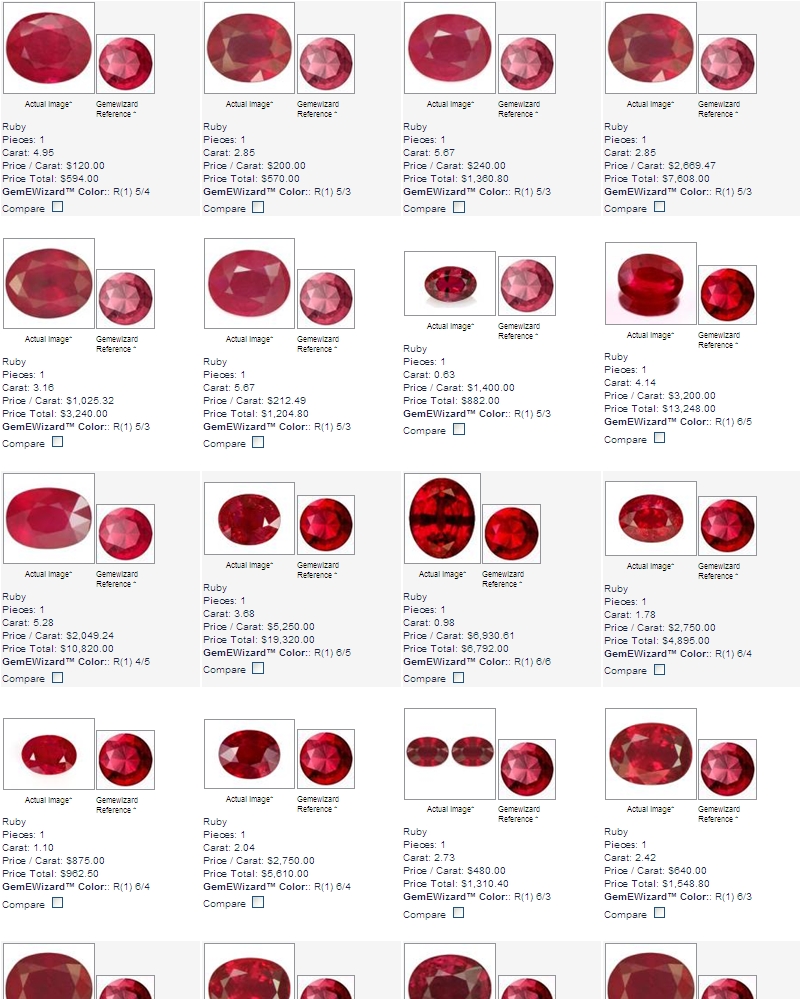
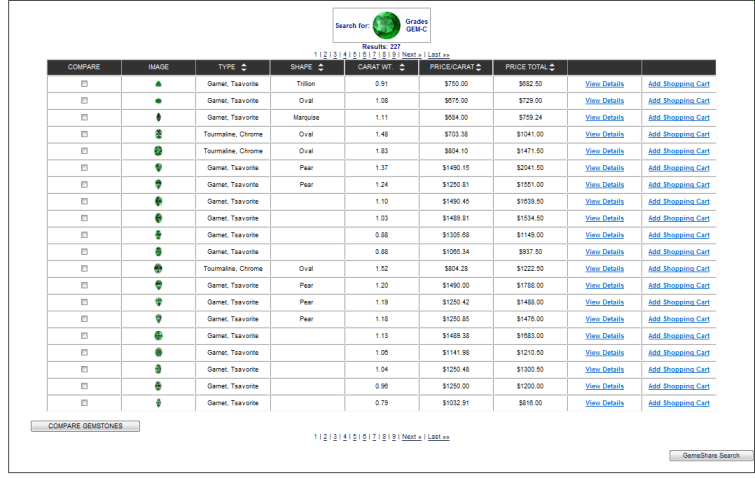
13.You will receive a list of items with the parameters you selected. Each item will have an actual image and an image of the gemstone's Gemewizard® color reference (defined by the owner).
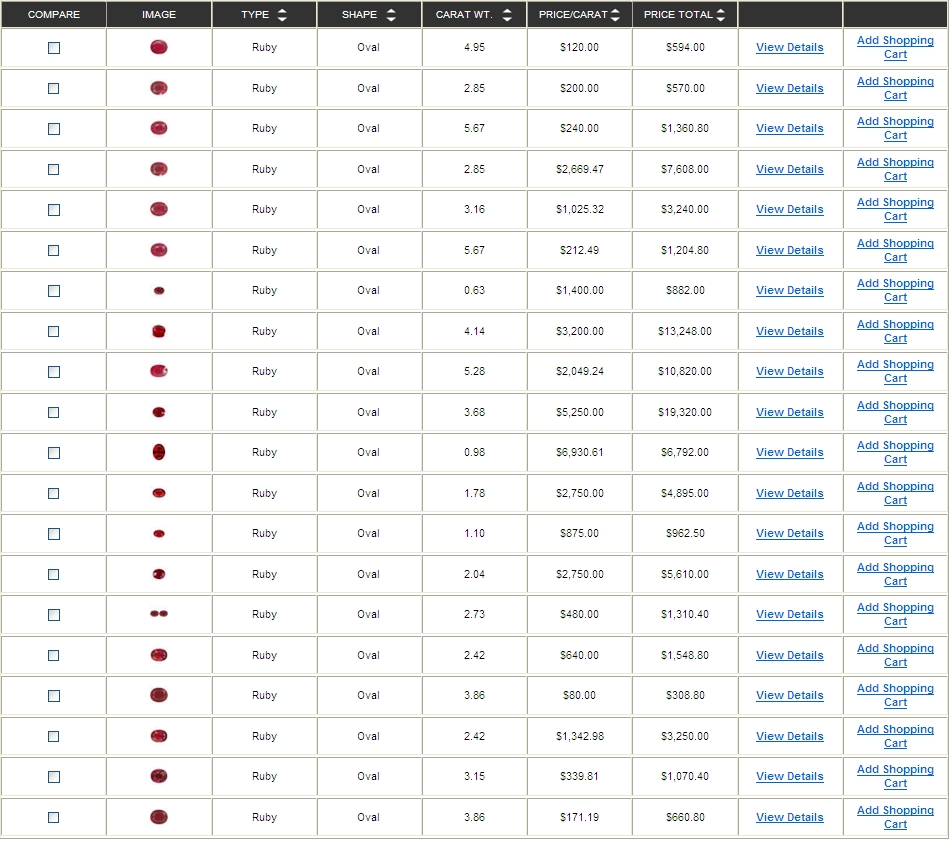
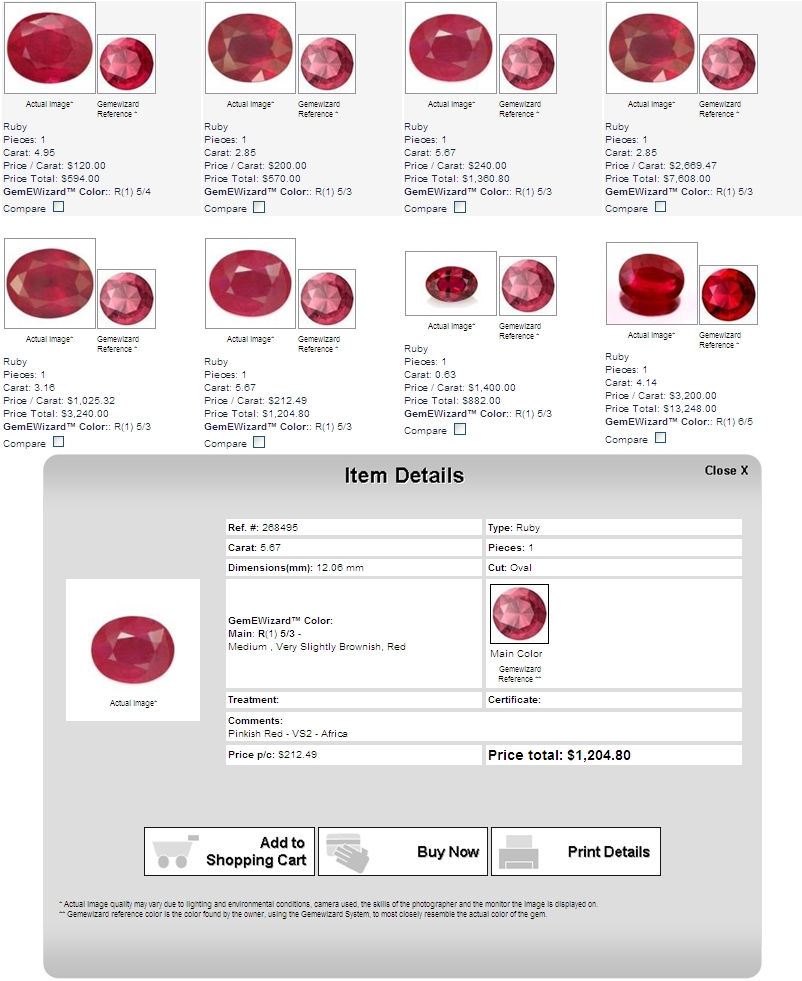
14.In the search results, Click on the item you are interested to see full information (gallery style) or select view details in the right hand side of the row (list style).
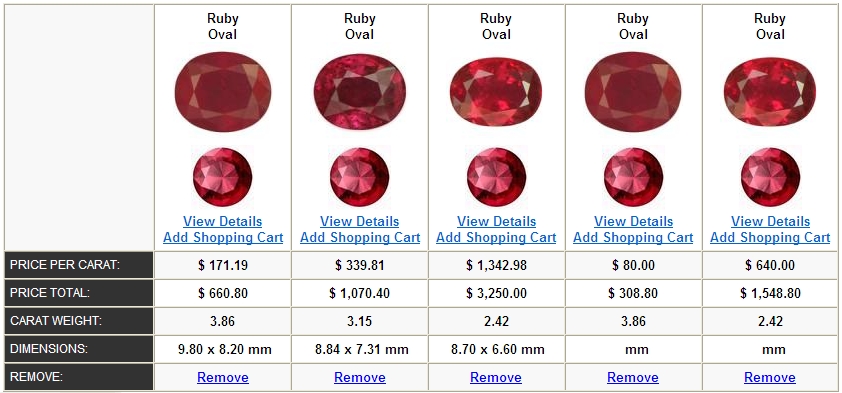
15.You can compare up to 5 items by checking their compare checkbox and clicking on the Compare button at the bottom.
Purchasing items:
16.In order to purchase an item, click on buy now.
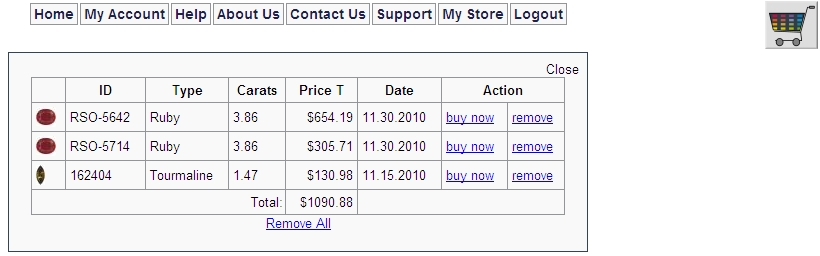
17.If you wish to collect more items before paying, click on Add to shopping cart for each item. When you complete your collecting, click on the shopping cart icon at the top bar to see and pay for your selections.
18.By clicking on buy now, you will be redirect to the site of the item owner. If the item owner does not have a website, you will be redirect to a PayPal payment page or you will be contact by the item owner through email.
|
The HomePage is divided into 3 parts "GemeShare Search", "Search by gemstone" and "Search by menu".
The "GemeShare Search" allows you to select options for gemstone search.
You can select Gemstone Type, Shape, Grade, Price limits, weight limits , color, sorting field and displaying mode (gallery or list).
In Advanced Mode you can select Measurement, GemeWizard color code, treatement and certificate.
Prices limits, and weight limits can be easily selected using the slide bars.
Click on a color on the square to select a color.
After selecting all the parameters click on search to obtain the search result. Select list to display result in a list.
You will receive a list of gemstones. In this list you can see some details of each gemstone and can select gemstones for comparison select view details to see more details of the gemstone or add to shopping to add the gemstone to the shopping cart.
Click on the checbox of compare for some gemstones and click on the button "COMPARE GEMSTONES", you wil receive a lis of gemstones you can compare.
You can view details, add to shopping cart or remove from compare list.
Click back to search to return to search result
Click on Home to go back to home page
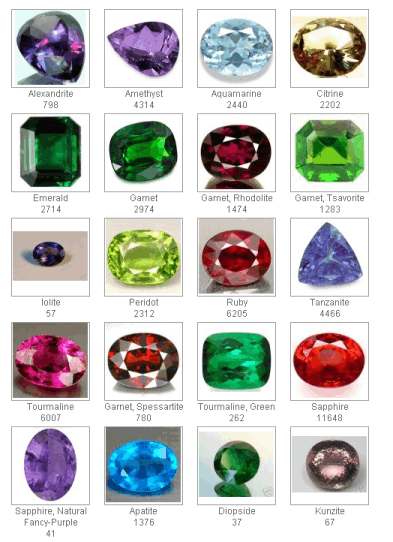
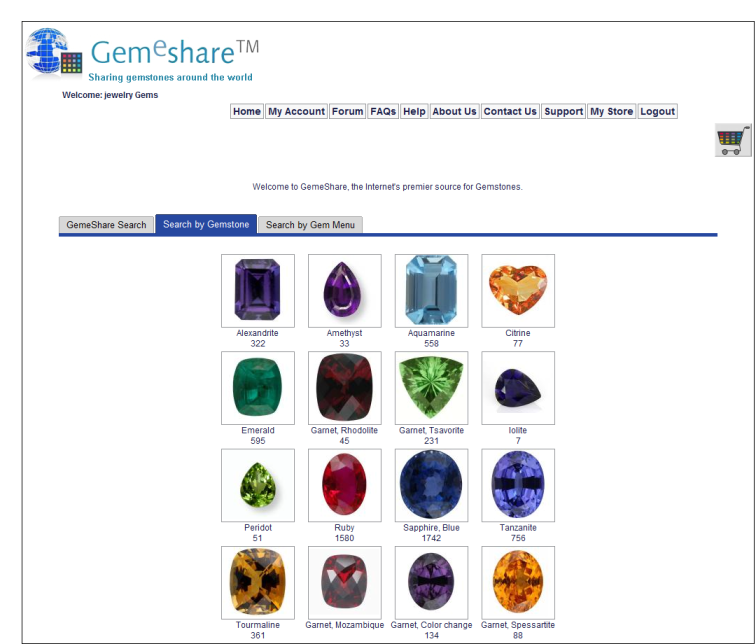
Click on the "Search by gemstone" for a quick search of this gemstone type according to the selected image.
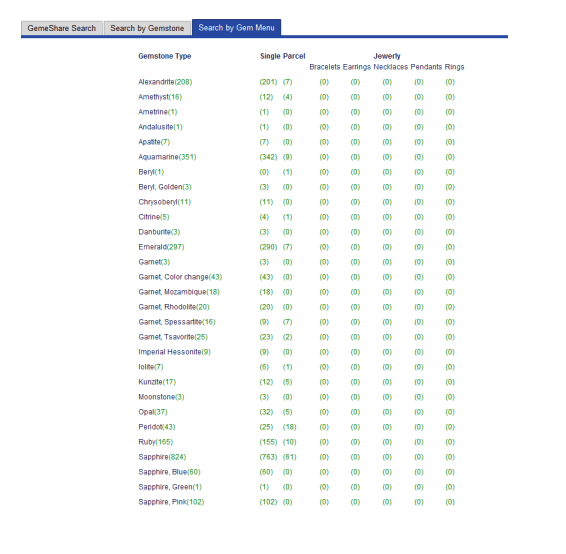
Select "Search by menu" to obtain a list of Gemstone types and quantities included in the GemeShare.
Click on a Gemstone type for quick search.
|
|
Select this option to read or post in the forum
|
|
|
What is GemeShare™?
How can I find the gemstone/jewelry I want in GemeShare™?
How can I include my gemstones/jewelries in GemeShare™?
I have already added an item in GemeShare™, but it does not appear in the search results
Which Categories and sub-categories of items are included in GemeShare™?
Which types of gemstones can be found in GemeShare™?
Which shapes & cutting styles of gemstones can be found in GemeShare™?
What is the GemeShare™ color search engine?
Which Gemewizard® tone grades included in GemeShare™?
Which Gemewizard® Saturation grades included in GemeShare™?
Which color Grades included in GemeShare™?
Which gemstones enhancements included in GemeShare™?
What is GemeShare™?
GemeShare™ is an Internet based platform for the trading of colored gemstones and fancy colored diamonds.
How can I find the gemstone/jewelry I want in GemeShare™?
Using the GemeShare™ search engine you can search for your desired gemstone using the following categories: Gemstone type, Gemstone category (single gemstone, parcel or jewelry), shape or cutting style, specific color, weight, Price per carat, Price total, measurements, color grade, treatments and certificate. To watch a video tutorial, please press here.
How can I include my gemstones/jewelries in GemeShare™?
You have number of options how to post your stones:
-
Option A: upload manually.
-
Go to BackOffice => Gemstones control => Add items
-
Select Add single item to upload items one by one (in a 4-step process), or multiple items, to upload a group of items together (in a table of parameters).
-
Option B: upload automatically from a Excel file
- Go to BackOffice => Gemstones control => Add items
- Select Add items using Excel file.
- Browse for your file and click on Upload file
Important: the Excel file should be written according to the GemeShare™ Excel code. For the full code list, click on upload help.
-
Option C: Scan and upload automatically the details of your items from your website.
Contact  for more information. for more information.
I have already added an item in GemeShare™, but it does not appear in the search results
Please check the following:
- Be sure you uploaded an image of the item. In order to upload an image, go to BackOffice ? Gemstones control => Inventory, and click on edit button in the left hand side of your item row.
- Be sure you have verified GW reference color. In order to verify the item color, go to BackOffice => Gemstones control => Verify color.
- Be sure the item approved to be shown in the requested areas. To change your item approved areas, go to BackOffice => Gemstones control => inventory, and click on edit button in the left hand side of your item row.
- If you uploaded your stone details by linking to a web-address, please wait 20 minutes and check again.
- Verify that the item is seen in your BackOffice inventory. If not, try uploading it again.
Which Categories and sub-categories of items are included in GemeShare™?
- Single Gemstone
- Parcel (pair, lot or set of gemstones)
- Jewerly
- Bracelets
- Earrings
- Necklaces
- Pendants
- Rings
Which types of gemstones can be found in GemeShare™?
The following types can be found in the GemeShare™:
- Alexandrite Genuine
- Amethyst
- Aquamarine
- Citrine
- Emerald
- Garnet
- Garnet, Rhodolite
- Garnet, Champagne
- Garnet, Tsavorite
- Iolite
- Peridot
- Ruby
- Sapphire, Blue
- Sapphire, Natural Fancy
- Montana Sapphire
- Tanzanite
- Topaz, Precious (Golden)
- Tourmaline
- Garnet, Mozambique
- Garnet, Color change
- Garnet, Spessartite
- Opal, Mexican Fire (faceted)
- Peridot, Arizona
- Quartz, Smoky
- Sapphire, Yellow
- Sapphire, White
- Topaz, London Blue
- Topaz, Sky Blue
- Topaz, Swiss Blue
- Tourmaline, Green
- Tourmaline, Pink
- Sapphire, Pink
- Zircon, Blue
- Topaz, Blue
- Sapphire
- Cubic Zirconia
- Sapphire, Natural Fancy-Brown
- Fancy Sapphire, Color Change
- Sapphire, Natural Fancy -Green/Blue
- Sapphire, Natural Fancy-Orange
- Sapphire, Natural Fancy-Purple
- Sapphire, Natural Fancy-Red
- Sapphire, Natural Fancy-Lilac
- Sapphire, Synthetic
- Tourmaline, Blue-Green
- Sapphire, Natural Fancy –Pink
- Sapphire, Natural Fancy Yellow
- Garnet Andradite
- Garnet Chrome Pyrope
- Sapphire, Burma / Kashmir
- Beryl, Red
- Andalusite
- Apatite
- Benitoite
- Diopside
- Kunzite
- Sapphire, Color Change
- Sapphire, Padparadcha
- Spinel
- Spinel, Red
- Spinel, Blue
- Garnet, Malaia
- Garnet, Grossularite
- Morganite
- Beryl, Golden
- Beryl, Green
- Topaz, Pink
- Tourmaline, Chrome
- Zircon, Brown
- Topaz
- Topaz, Imperial
- Spinel, Lavender
- Tourmaline, Bi-color
- Tourmaline, Blue
- Tourmaline, Paraiba
- Sapphire, Green
- Ruby, Burma
- Quartz, Ametrine
- Garnet, Almandite
- Garnet, Demantoid
- Tourmaline, Red
If you want to add a new gemstone type to the GemeShare™, please contact for more information.
Which shapes & cutting styles of gemstones can be found in GemeShare™?
- Oval
- Emerald Cut
- Round
- Trillion
- Square
- Pear
- Heart
- Princess
- Radiant
- Marquise
- Baguette
- Cab. Oval
- Cab. Round
- Cab. Pear
- Cab. Marquise
- Cushion
- Square Cushion
- Round Diamond Cut
What is the GemeShare™ color search engine?
The colors in GemeShare™ are based on the Gemewizard® colors. As does the Gemological Institute of America® (GIA), the GemeShare™ color search engine identifies 31 master color hues, with each visible in seven tones, and each of those in six levels of saturation, creating together 1146 colors. This feature gives the user the option to search for a gemstone according to its precise color.
The colors are:
- 1 Red
- 2 orangy Red
- 3 red-orange
- 4 reddish Orange
- 5 Orange
- 6 yellowish Orange
- 7 orangy Yellow
- 8 Yellow
- 9 greenish Yellow
- 10 Yellow-Green
- 11 strongly yellowish Green
- 12 yellowish Green
- 13 slightly yellowish Green
- 14 Green
- 15 very slightly bluish Green
- 16 bluish Green
- 17 very strongly bluish Green
- 18 Green-Blue
- 19 very strongly greenish Blue
- 20 greenish Blue
- 21 very slightly greenish Blue
- 22 Blue
- 23 violetish Blue
- 24 bluish Violet
- 25 Violet
- 26 violetish Purple
- 27 Purple
- 28 reddish Purple
- 29 Red-Purple or Purple-Red
- 30 strongly purplish Red
- 31 slightly purplish Red
Which Gemewizard® tone grades included in GemeShare™?
- 2 Very light
- 3 Light
- 4 Medium light
- 5 Medium
- 6 Medium dark
- 7 Dark
- 8 Very dark
Which Gemewizard® Saturation grades included in GemeShare™?
- 1 Grayish/Brownish
- 2 Slight Grayish/Brown
- 3 Very Slightly Grayish / Brownish
- 4 Moderately Strong
- 5 Strong
- 6 Vivid
Which color Grades included in GemeShare™?
GemeShare™ uses the GemePrice™ color grades. The grades are:
- GEM / Exceptional (9-10)
- AAA / Extra Fine (8-9)
- AA / Fine (6-8)
- A / Good (4-6)
- B / Commercial (3-4)
- C / Lower comm. (1-3)
Which gemstones enhancements included in GemeShare™?
Gemstone
Enhancement Codes*
|
N
= NOT ENHANCED
|
F
= FILLING
|
O
= OILING/RESIN
|
|
H
= HEATING
|
R
= IRRADIATION
|
B
= BLEACHING
|
|
U
= DIFFUSION
|
C
= COATING
|
L
= LASERING
|
|
HP
= HEAT & PRESSURE
|
D
= DYEING
|
I
= IMPREGNATING
|
|
SC
= SPECIAL CARE
|
W = WAXING/OILING
REQUIRED IN OPAQUE STONES
|
|
*Codes must appear in a column next to
all gemstone descriptions, with a noticeable reference or label, at
the bottom or back of invoices and memorandums. Codes and type of
treatments must only be used as directed in the Gemstone
Information Manual (GIM), 9th Edition, available online at
www.agta.org/info or from the American Gem Trade Association, 3030
LBJ Fwy., Ste. 840, Dallas, TX 75234. Phone: 800-972-1162.
All natural gemstones
can be divided into two basic categories:
1)
Those which are not enhanced.
N
The “N”
symbol appears for natural gemstones which are not currently known to
be enhanced (Alexandrite, Garnet, etc.). However, the “N”
symbol can also be used for other natural gemstones in the event that
a gemstone has received no enhancement and the seller will provide a
guarantee that there has been none. That
gemstone must be accompanied by a commercial document, such as an
invoice, memorandum and/or a laboratory report, to support the fact
that the gemstone is not enhanced.
2)
Since many enhancements are difficult or impractical to prove
definitively, the approach taken in this manual is, unless otherwise
indicated, to assume that such traditional enhancement has been done
to that particular gemstone. This assumption has been made in order
to protect both the seller and the consumer.
For
example, Ruby “F.” The surface cavities are filled with a
foreign matter such as glass. Within the industry, this gemstone must
be labeled with the letter “F.” This information must
also be provided to the consuming public in writing using plain
language. Abbreviations and codes are not sufficient.
NOTE:
Multiple enhancement techniques are sometimes applied to the same
material.
All
treatments must be listed. Example: Diamond “LF”
(Lasering and Filling).
DISCLOSURE
REQUIREMENTS
FOR
NATURAL GEMSTONES
SYMBOLS FOR
SPECIFIC FORMS OF ENHANCEMENTS
B
Bleaching: The use of
heat, light and/or other agents to lighten or remove a gemstone’s
color.
C
Coating: The use of
such surface enhancements as lacquering, enameling, inking, foiling
or sputtering of films to improve appearance, provide color or add
other special effects.
D
Dyeing: The
introduction of coloring matter into a gemstone to give it new color,
intensify
present
color or improve color uniformity.
F
Filling: The filling
of surface-breaking cavities or fissures with colorless glass,
plastic, solidified borax or similar substances. This process may
improve durability, appearance and/or add weight.
H
Heating: The use of
heat to effect desired alteration of color, clarity and/or phenomena.
If
residue of foreign substances in open fissures is visible under
properly illuminated 10X
magnification,
H F should be used.
HP
Heating and Pressure: The
use of heat and pressure combined to effect desired alterations of
color, clarity and/or phenomena.
I
Impregnation: The
impregnation of a porous gemstone with a colorless agent (usually
plastic) to improve durability and appearance.
L
Lasering: The use of
a laser and chemicals to reach and alter inclusions in gemstones,
usually
diamonds.
O
Oiling/Resin Infusion: The
filling of surface-breaking fissures with colorless oil, wax, resin
or other colorless substances, except glass or plastic, to improve
the gemstone’s appearance.
R
Irradiation: The use
of neutrons, gamma rays or beta particles (high energy electrons) to
alter a gemstone’s color. The irradiation may be followed by a
heating process.
U
Diffusion: The use of
chemicals in conjunction with high temperatures to produce ARTIFICIAL
color change and/or asterism-producing inclusions.
Note:
It is a violation of the FTC Guides to fail to disclose diffusion on
gemstones in
advertising,
promotional literature or commercial documents. Suggested methods of
disclosure are:
“(Gemstone):
chemically colored (Color) by diffusion.”
Example:
“Sapphire: chemically colored blue by diffusion.”
If
the color of the diffused gemstone does not permeate the entire
stone, then the following statement must also appear:
“Although
the color induced in diffusion treated gemstones is permanent, it
does not permeate the entire gemstone; therefore, recutting or
repolishing is not recommended.”
W
Waxing/Oiling: The
impregnation of a colorless wax, paraffin or oil in porous opaque or
translucent gemstones to improve appearance.
The above disclosure
language must be printed in a type-size and location so as to be
conspicuous.
For the full AGTA
Gemstone Information Guide go to
http://www.agta.org/gemstones/agta-gim.pdf
|
|
Display this Help.
|
|
Display information about the Gemewizard and the GemeShare.
|
|
Display information for contact us.
|
Select Register to register to the GemeShare. You can register as a consumer if you want only to buy gemstones or trade if you want to buy and sell gemstones.
A simple form is displayed.
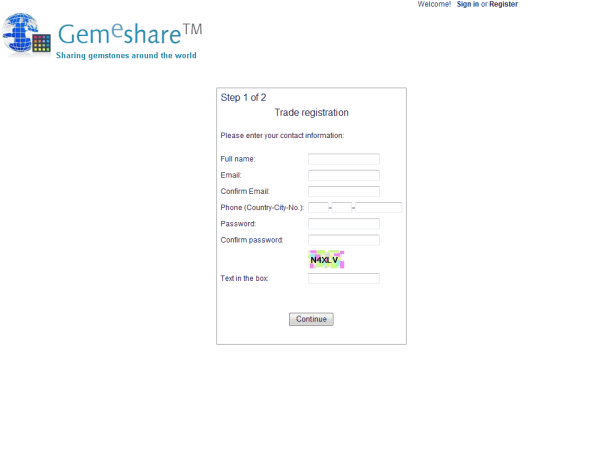
Fill in the form and click continue. Fill next form. You will receive an email confirming your registration.
|
Select Sign in to login into the GemeShare.
A simple form is displayed. Enter your email and password to login.
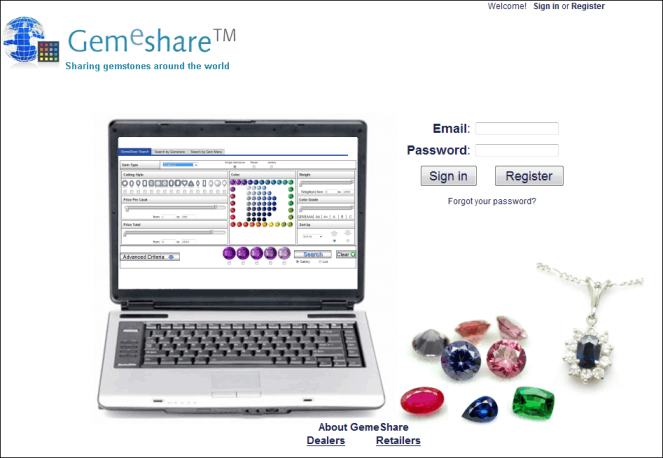
Click on "How it Works" for further explanation of the GemeShare.
Click on "Learn more about GemeShare" to learn more about the GemeShare.
|
Select option My account if you want to manage your account (BackOffice).
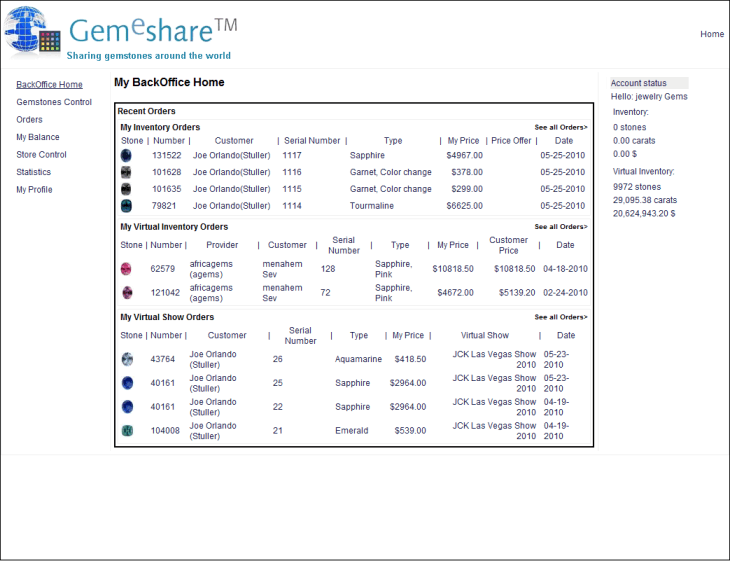
A summary of your GemeShare orders are displayed, including: Inventory Orders, Virtual Inventory Orders and Virtual Show Orders.
You have the following options in the left menu:
- Backoffice Home
- Gemstones Control
- Orders
- My Balance
- Store Control
- Statistics
- My Profile
|
Select My Balance option for displaying reports of Gemstones Charges and Commissions.
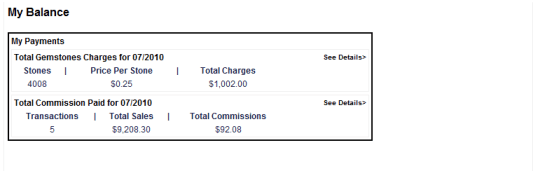
You have the options:
Gemstones Charges
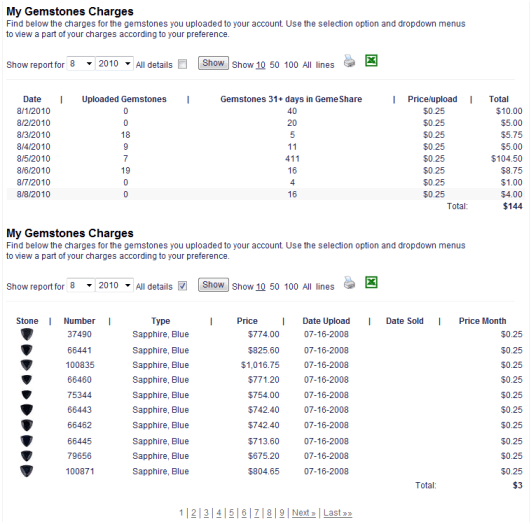
Display the charges for parking fee of gemstones in the GemeShare
Comissions
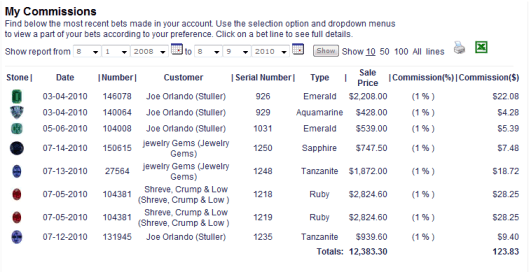
Display the commission you have to pay to the GemeShare for the gemstones you sold.
|
The new transaction help area will be updated within a few days
for any queries, please contact
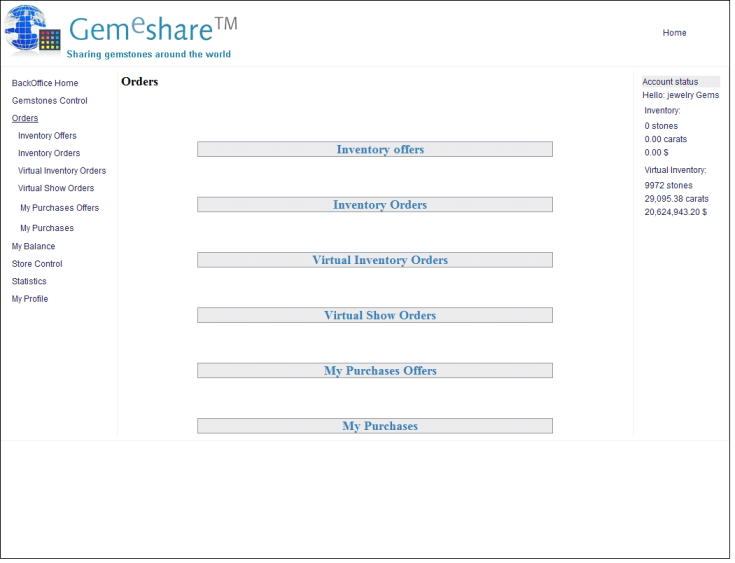
Selecting Orders you have the following options:
- Inventory Offers
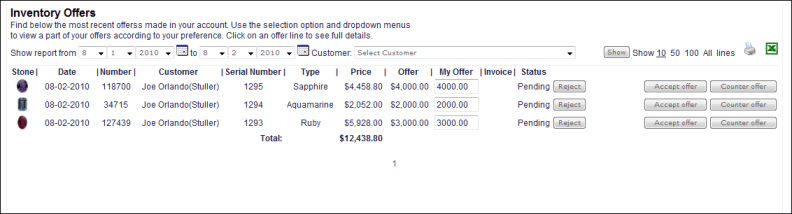
Display all the offers you have to attend.
You can reject the offer, accept the offer or make a counter offer.
- Inventory Orders
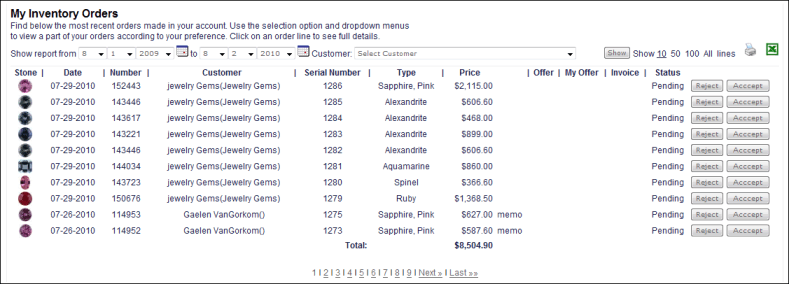
Display all the orders you have to attend.
You can reject order or confirm order.
- Virtual Inventory Orders
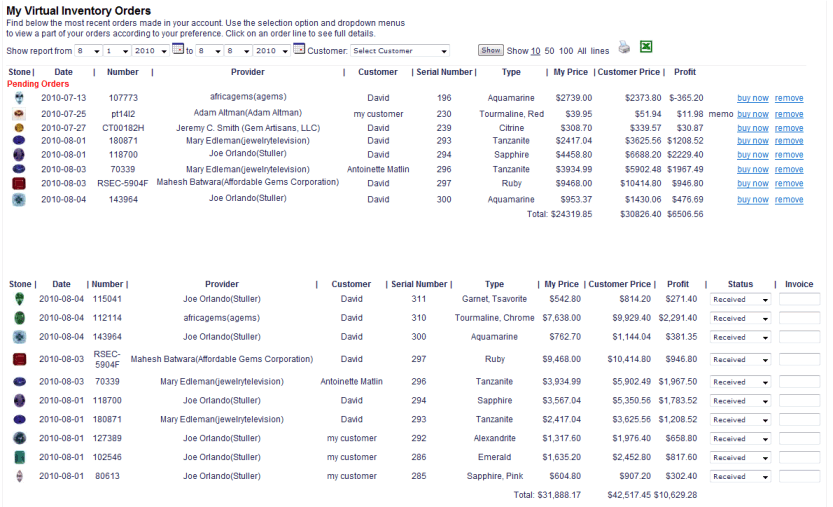
Display all the virtual inventory orders you have to attend.
In the report you have pending orders and history orders.
In pending orders you can select "buy now" or "remove".
In history orders you can select status "received" , "in proccess" , "in store" , "paid" or "rejected".
- Virtual Show Orders
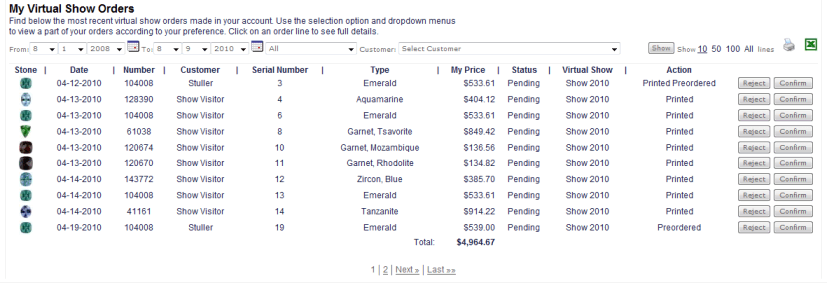
Display all the virtual show orders you have to attend.
You can reject order or confirm order.
- My Purchases Offers
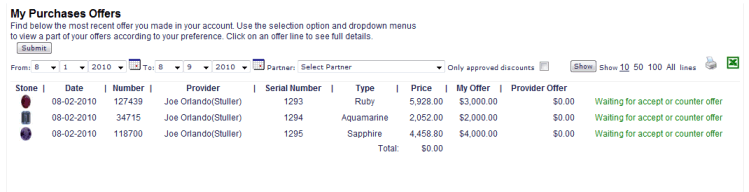
Display all the Purchases Offers you made.
You can accept the offer or make counter offer after the provider reply.
- My Purchases
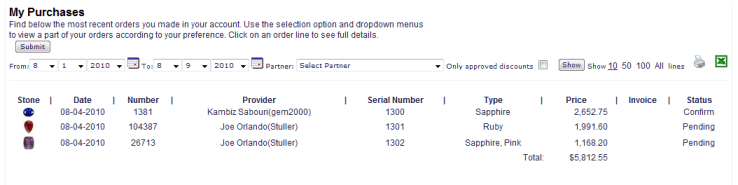
Display all the Purchases history you made.
You can accept the offer or make counter offer after the provider reply.
|
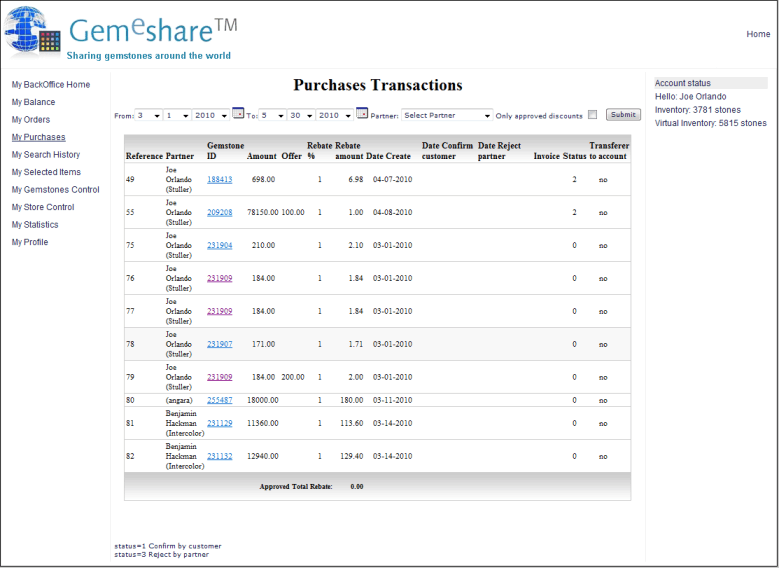
Display the Purchases Transaction Report
|
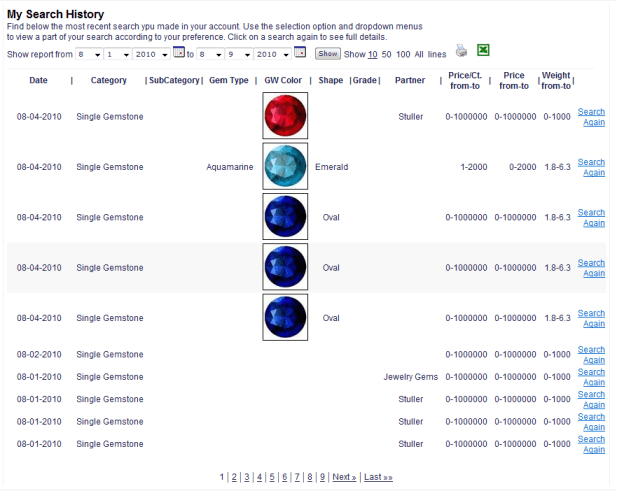
Display the History of searches you did in the GemeShare
|
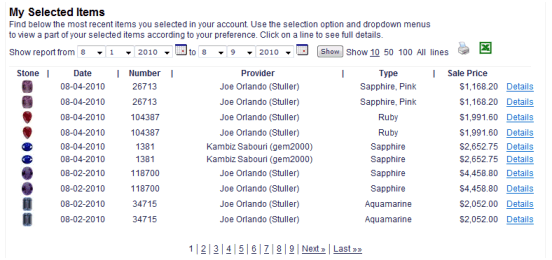
Display the History of your selected items in the GemeShare
|
 Watch a video tutorial on how to upload a gemstone Watch a video tutorial on how to upload a gemstone
Add single item:
- Go to BackOffice => Gemstones control => Add items => Add single item
- 'Step 1 of 4' window will appear.
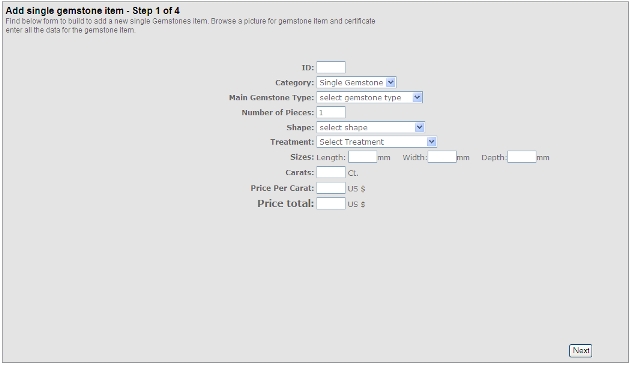
- Fill in your reference number of the item in the ID field.
- Select the item category from the category drop-down menu. If you did not select Jewelry in the category drop-down menu, please skip step 5.
- If you select Jewelry in the category drop-down menu:
- a.A sub-window of the metal description will appear.
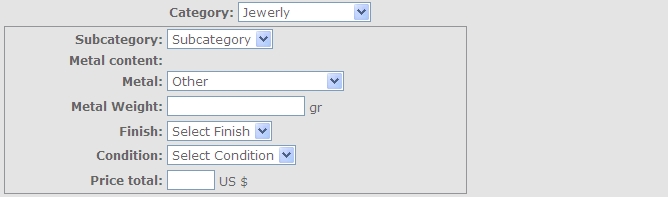
- b.Select sub-category of the Jewelry from the sub-category drop-down menu.
- c.Select metal content of the Jewelry from the metal content drop-down menu.
- d.If you selected silver, gold, platinum or titanium content, a purity drop-down menu will appear in right hand side of the metal content. Select the purity of the selected Metal content.
- e.Fill in the metal weight (in grams) in the Metal weight field.
- f.Select the finish texture of the metal from the Finish drop-down menu.
- g.Select metal condition of the Jewelry from the metal condition drop-down menu.
- h.If the jewelry contains more than one gemstone, you can add any additional gemstone and/or additional diamond information by pressing the '+' signs at the bottom of the page.
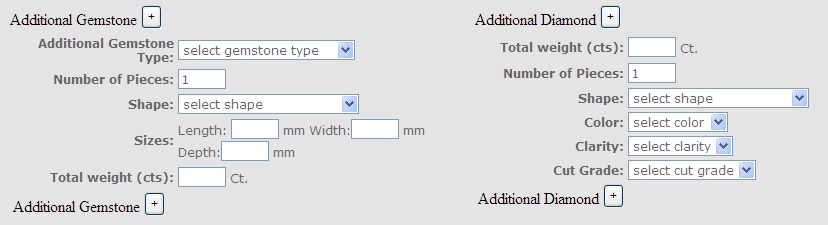
- i.For additional gemstones: select gemstone type, quantity (number of pieces), shape, sizes (measurements of each) and total weight.
- j.For additional diamonds: select total weight, quantity (number of pieces), shape, color (or color range), clarity (or clarity range) and cut grade.
- Select Gemstone from the gemstone type drop-down menu.
- Fill in the number of pieces in the pieces field.
- Select Shape or cutting style from the color grade drop-down menu.
- Select the treatment or enhancement, which the gemstone has undergone, from the treatment drop-down menu. For an untreated gemstone, select none.
- Fill in the measurements of the gemstone (length, width and depth in mm) in the sizes fields.
- Fill in the weight (in carats) of the gemstone in the carats field.
- Fill in the price per carat and price total (calculate automatically) for the gemstone in the price per carat and total fields.
- Click next to 'Step 2 of 4' window.
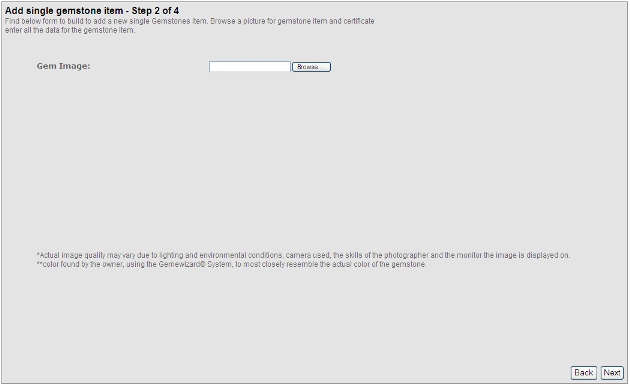
- Browse for your gemstone image. A small preview of the image and a Gemewizard reference color will appear at the left hand side of the window.
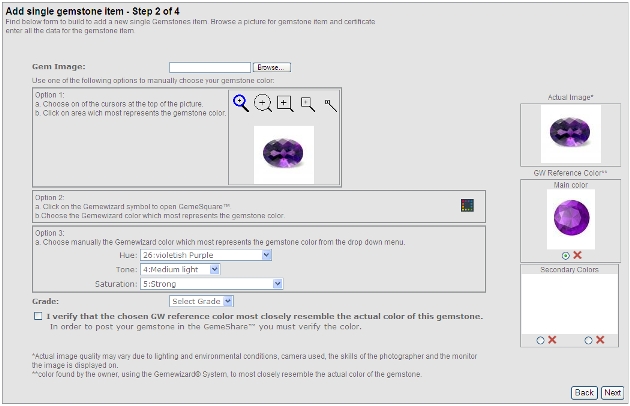
- The GW reference color is the color found by you (the owner), using the Gemewizard® System, to most closely resemble the actual color of the gemstone. The GW color reference of your image is analyzed automatically by the system. However, you (the owner) make the final approval of the color.
- If you are unsatisfied with the automatic analysis, you can change it in 3 ways:
- a.Move the cursor and click on the most resemble color area within the image.
- b.Open the GemeSquare and choose from the whole square of colors.
- c.fill in the hue, tone and saturation from the drop-down menus.
- If you are uploading a parti-colored gemstone or a parcel of gemstones with different colors, you can add secondary GW reference colors by selecting the radio buttons below the main GW reference color and define them using one of the 3 ways above.
- To clear your analysis, click on the red X sign under each analysis.
- Select the color grade of your gemstone from the color grade drop-down menu.
- After completing the GW reference color analysis, check the 'I verify that…' checkbox at the bottom of the window. If you will not check it, your gemstone will not be shown in GemeShare.
- Click next to 'Step 3 of 4' window.
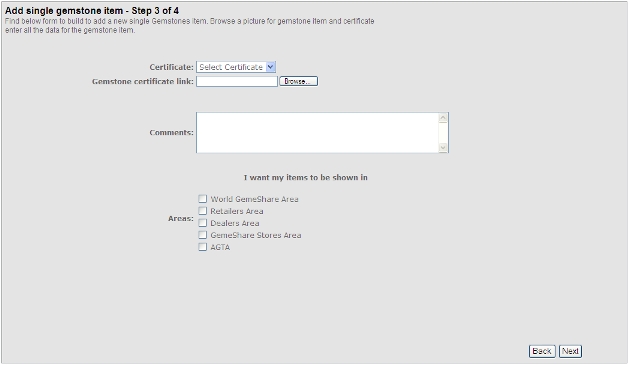
- If you have a certificate of your gemstone, select the certificate issuer from the certificate drop-down menu.
- You can also upload a scanned image of the certificate using the browse button.
- Fill in any additional information that you think is relevant for your gemstone description in the comments field. The comments field should include any information that you didn't specify in other criteria selections and fields.
- Check the areas and communities within the GemeShare you want your gemstone to be post.
- Click next to 'Step 4 of 4' window.
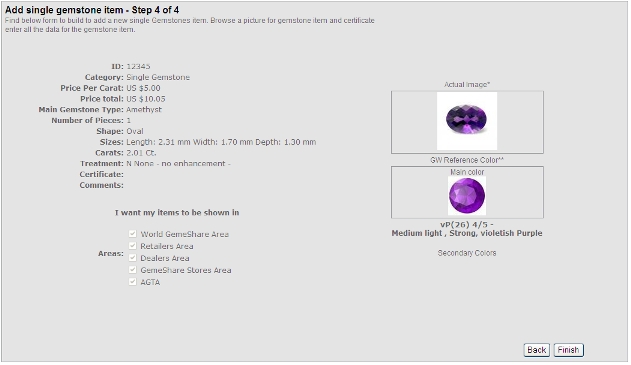
- All your selected criteria will be shown for your final approval. To approve, click Finish. To change information, click on Back.
Add Multiple items (in a table):
Go to BackOffice => Gemstones control => Add items => Add multiple items
- A table of items will be shown. Each row of the table is representing a gemstone to upload. For any gemstone you wish to upload do steps 2 to 20.

- Fill in your reference number of the item in the ID field.
- Select the item category from the category drop-down menu.
- Select Gemstone from the gemstone type drop-down menu.
- Select Shape or cutting style from the color grade drop-down menu.
- Fill in the number of pieces in the pieces field.
- Fill in the weight (in carats) of the gemstone in the carats field.
- Fill in the price per carat and price total (calculate automatically) for the gemstone in the price per carat and total fields.
- Click on Show in the more details column. The item row will expand to 3 gray-colored rows. To collapse the item details back to one row, click on hide at the top right hand side of the first row.
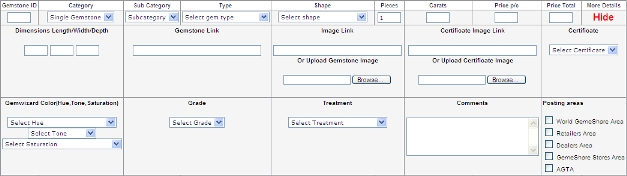

- Fill in the measurements of the gemstone (length, width and depth in mm) in the sizes fields.
- If you have a web page containing the whole information of your item and you wish to use it, fill in the web address of your item in the gemstone link field and skip steps 14 to 20.
- Fill in your gemstone image web address in the image link, or browse for your gemstone image file in the Upload gemstone image field.
- Fill in your certificate image web address in the certificate image link, or browse for your certificate image file in the Upload certificate image field.
- If you have a certificate of your gemstone, select the certificate issuer from the certificate drop-down menu.

- Fill in the pre-defined hue, tone and saturation of your gemstone color from the drop-down menus.
- Select the color grade of your gemstone from the color grade drop-down menu.
- Select the treatment or enhancement, which the gemstone has undergone, from the treatment drop-down menu. For untreated gemstone, select none.
- Fill in any additional information that you think is relevant for your gemstone description in the comments field. The comments field should include any information that you didn't specify in other criteria selections and fields.
- Check the areas and communities within the GemeShare you want your gemstone to be post.
- If you have a web page containing the whole information of your item and you wish to use it, fill in the web address of your item in the gemstone link field. The information will be copied automatically to the GemeShare. The information does not copy the item certificate images, please fill in their web addresses in the image link and certificate link fields.
- After completing filling all your items details, click Save at the bottom of the page.
- Your items will be shown only after completing verifying the color of the items in the Verify Color section. To verify the color, please click on Verify color under Gemstones control in the left hand side menu.
- If you wish to upload a jewelry with number of gemstones, please use the Add single item under Gemstones control in the left hand side menu.
Add items with Excel file
Go to BackOffice => Gemstones control => Add items => Add items using Excel file.

- Browse for your Excel data file.
- Click on Upload file.
Important: the Excel file should be written according to the GemeShare™ Excel code. For the full code list, click here.
Add items from partners
Go to BackOffice => Gemstones control => Add items => Add items from partners
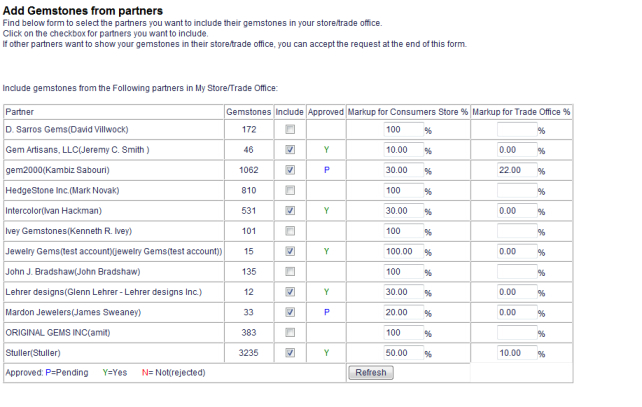
- Tick the following members you wish to show their inventories in your GemeShare retail store/trade office (the items will be shown as they were yours). In the right hand side of each member fill in your added markups to the items price.
- click on update.
- When the items owner will approve your request to post his inventory on your store, the allowed column will change from N to Y and the inventory will automatically add to your GemeShare retail store/trade office.
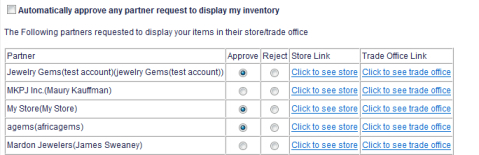
- Tick on Automatically approve any partner request to display my inventory. If you want to do all approves automatically.
- to approve or reject requests from other members to show your items in their GemeShare retail store/trade office tick the allow checkbox in the right hand side of each request. Your inventory will automatically add to the member's GemeShare retail store/trade office
For additional information and technical support, please contact for more information.
Verify Color
The GW reference color is the color found by you (the owner), using the Gemewizard® System, to most closely resemble the actual color of the gemstone. The GW color reference of your image is analyzed automatically by the system. However, you (the owner) make the final approval of the color.
Go to BackOffice => Gemstones control => Verify color
A table of your items images and their GW reference color analysis will appear. Each item and its GW reference color will appear in a cell.
Within the cell, the following feature appear:
- The gem image
- The GW reference color
- The gem details and reference number (top left)
- Hide button (top right)
- GemeSquare icon
- 2 or 3 drop-down menus:
- main and secondary colors
- Gem color grade
- Auto/Man analysis
- 2 checkboxes:
- Verify color
- Verify Grade
- Uploading date and time (bottom)
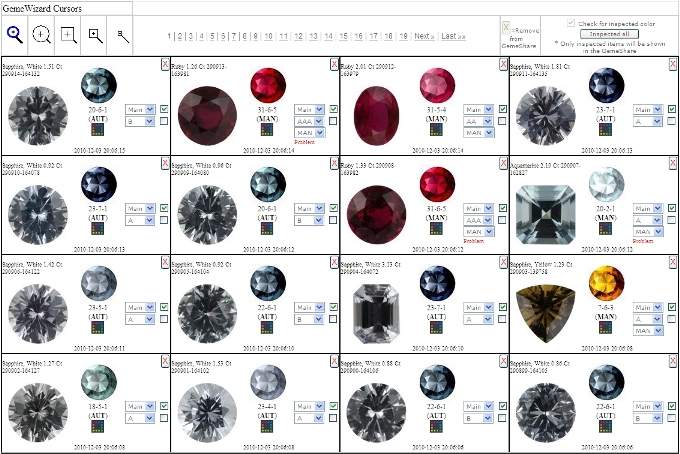
Each item analysis, found by the system, to be too far from your selected GW color or, your selected price is too far from the prices usually find in the system for that particular gem quality, will be marked with 'Problem' in red.
If you are unsatisfied with the analysis, you can edit it in 2 ways:
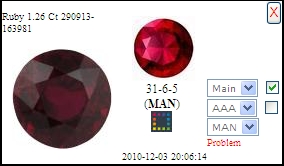
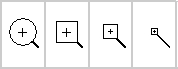
- a.Move the cursor and click on the zone within the image of the gem which most closely resembles the true color of the gem. The selected area color will appear in the GW reference color. For your convenience, 4 different cursors can be selected, according to the radius of the area to be analyzed by the Sampler.
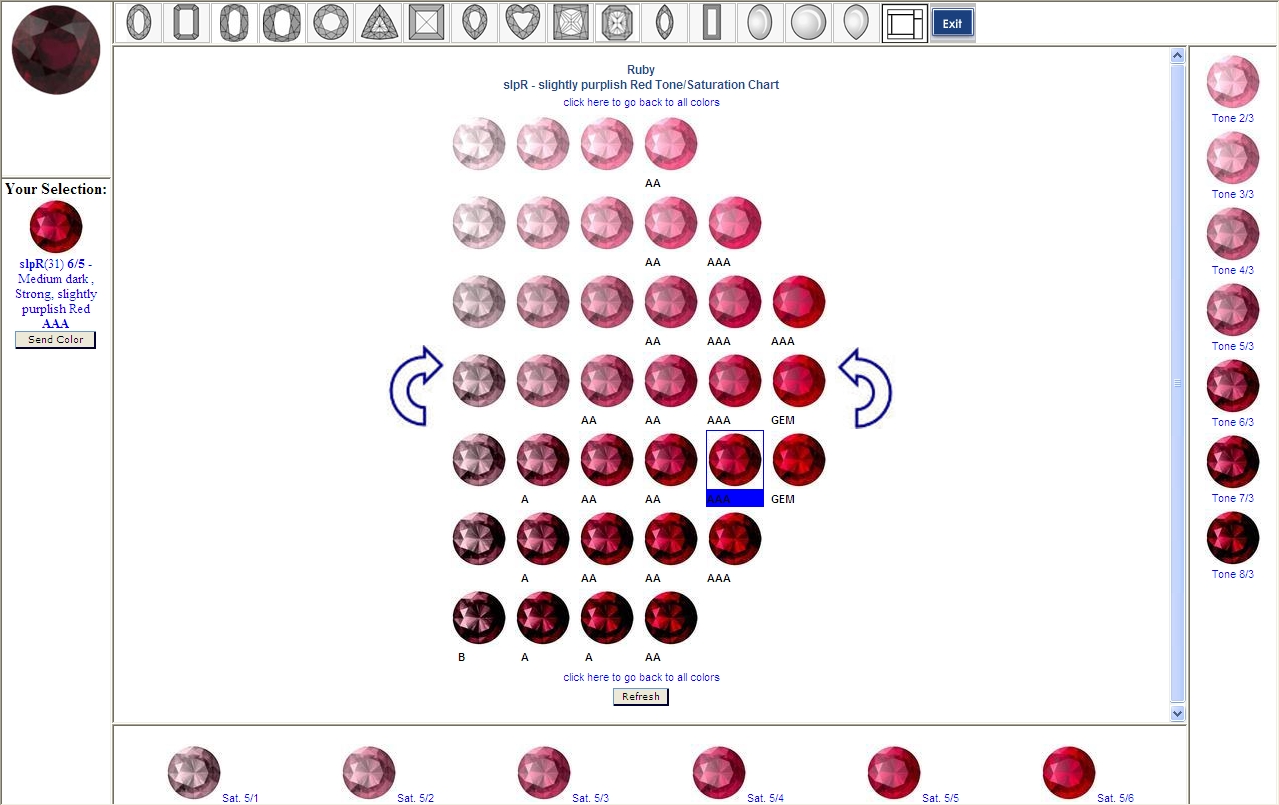
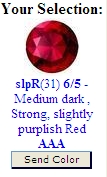
- b.Click on the GemeSquare icon, below the GW reference color, to display the GemeSquare. Select your gem's color from the square of colors, and than, from the displayed tone/saturation combinations. Click on the selected color. Your selection will appear on the left hand side of the window. Click on 'send color'. The selected color will appear in the GW reference color.
To automatically reanalyze the color of the gem, select 'AUT' from the drop-down menu or select the blue loupe icon from the GW cursors at the top or bottom bars and click on the image.
If you are uploading a multi-colored gemstone, jewelry or a parcel of gemstones with different colors, you may add secondary GW reference colors by selecting 'S1' (secondary 1) or 'S2' (secondary 2) from the upper drop-down menu.
Verifying color: When you are satisfied with the selected GW color reference/s of a particular gem, Tick the upper checkbox (verify color) of its cell to approve the color/s. Your items will be displayed in the GemeShare only if you verify their GW reference color.
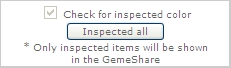
You can verify all items by clicking the 'inspect all' button at the top or bottom bars.
Select the color grade of your gemstone from the color grade drop-down menu. To approve your selection, tick the lower checkbox (verify grade).
Hiding an item:
If you wish to hide the item from the verify-color table and the search results, click the X sign at the top right hand side of the item cell. The item will not be displayed in the search results.
Markup Area
The GemeShare is divided to a number of trading areas. The Areas are World GemeShare Area, Retailers Area, Dealers Area, GemeShare Stores Area and AGTA Area.
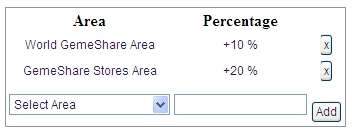
For each Area, select a Markup so that the price of your items will be displayed with that markup.
For example, if you select the GemeShare Stores' Area, with a Markup of 50%, a gemstone uploaded by you to the GemeShare priced at $120 will be shown to the consumer in your store as $180.
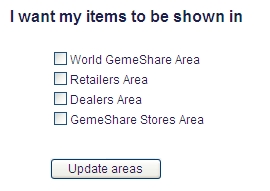
Tick the areas checkboxes in which you wish your items to be displayed.
For example, if you do not select Retailers' Area, when a retailer searches the GemeShare, your items will not be located by him/her.
If you select for example only AGTA Area, your gemstones will be shown only to AGTA GemeShare members.
|
Select this option to build and activate your store/trade office:
The store is for consumers and the Trade office is for members of the trade.
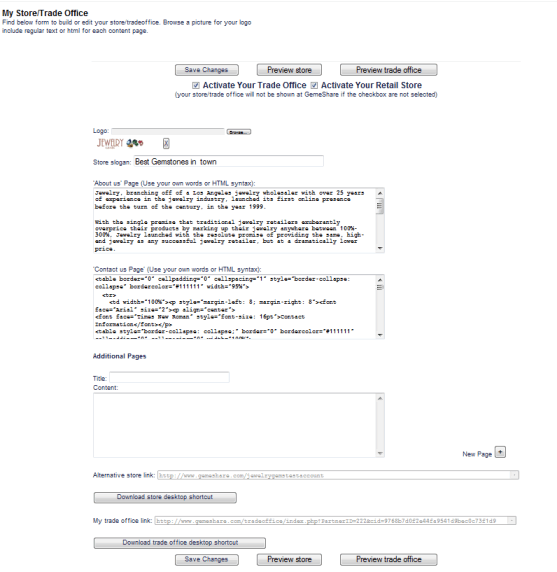
You can add logo, slogan and information of about us, contact us and other content pages. Use HTML for better view.
You can create an Alternative store link that include your company name.
You can download a shortcut to your store/trade office and you can preview store/trade office.
|
Select this option to display important statistics about your account in the GemeShare :
You have the options:
Graphic Statistics
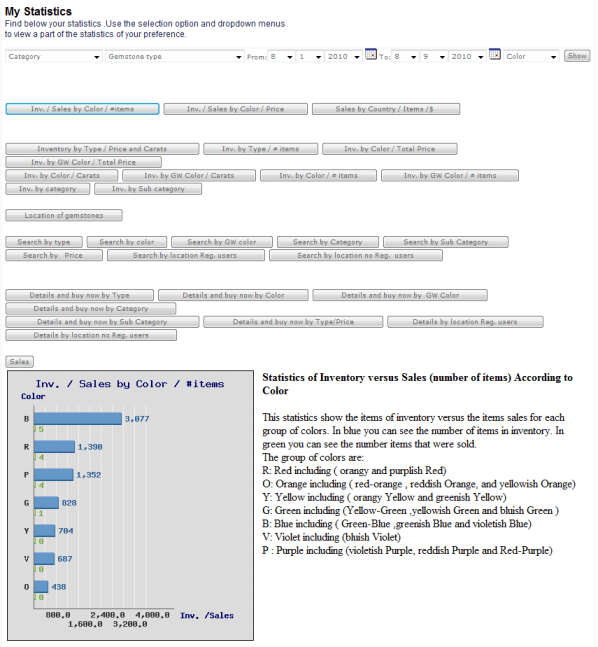
My Search History
Display the History of searches you did in the GemeShare
My Selected Items
Display the History of your selected items in the GemeShare
|
Managing my Gemstones : Allows you to manage your gemstones in the GemeShare.
You have the following options:
My Gemstones
Add Gemstones and Verify color
Markups and default Areas
My Fees
Charges for gemstones uploaded
Sales for transactions
My Reports
Graphic Statistics
Statistics
My Gemstones: Displays your gemstones included in the GemeShare and allows you to edit details of the gemstones.
Add Gemstones and Verify color:
You can add a single gemstone.
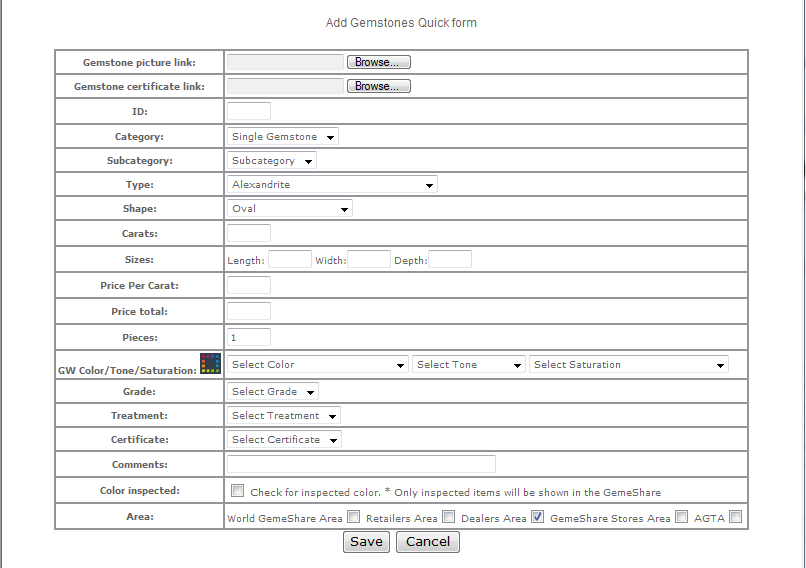
You can also add multiple gemstones
You can add, edit or delete gemstones from the Gemeshare.
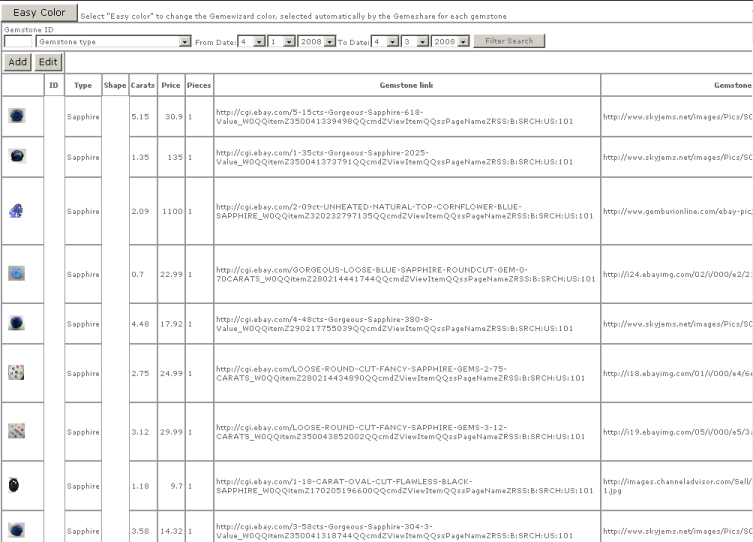
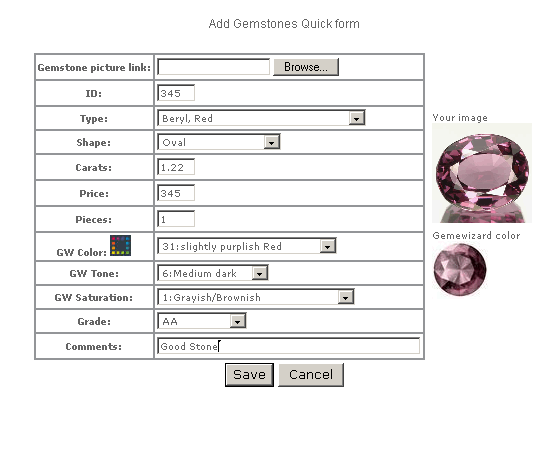
Information for each gemstone is: ID, Type, Shape, Carats, Price, Pieces, Gemstone link, Gemstone picture link, GW Color, GW Tone, GW Saturation,Grade, Comments.
Try to fill in most of the fields. GW Color, GW Tone, GW Saturation and Grade are automatically done by the GemeShare.
Select Gemstone ID , Gemtype or dates to filter your search.
Select option verify color to approve the color selected automatic by the GemeShare.
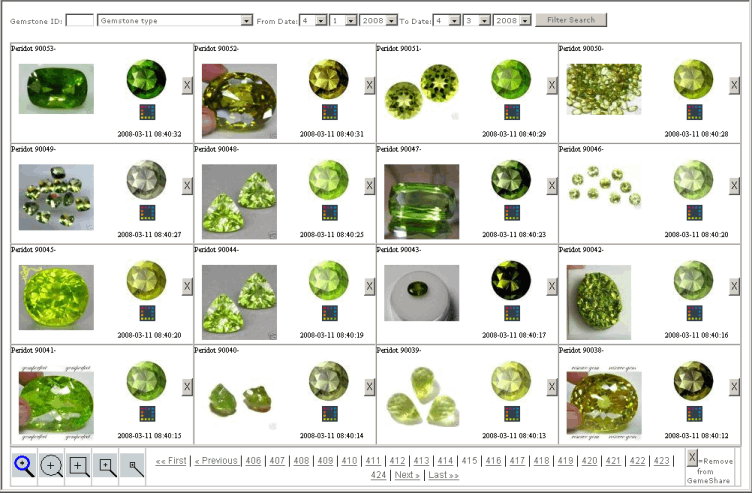
Select one of the following cursors according to radius of the area to be analyzed by the Sampler:


Click on one Gemstone. You will automatically receive a new Gemewizard Color.
Click on X to remove a Gemstone from GemeShare.
Click on  to select the Gemewizard Color from the GemeSquare. to select the Gemewizard Color from the GemeSquare.
Upload Excel file. Allows you to upload to the GemeShare several gemstones using a file. Select help upload for details.
Markups and default Areas
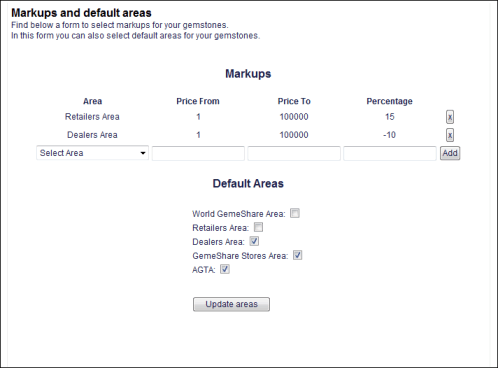
Select default areas in which you wish to show your gemstones.
The Areas are:
- World GemeShare Area
- Retailers Area
- Dealers Area
- GemeShare Stores Area
- AGTA Area
For example, if you do not select Retailers' Area, when a retailer searches the GemeShare your gemstones will not be located.
If you select for example only AGTA Area, your gemstones will be shown only for AGTA members.
For each Area you can select a Markup so that the price of your gemstones will be shown with that markup.
For example if you select the GemeShare Stores' Area, with a Markup of 50%, a gemstone uploaded by you to the GemeShare priced at $ 120 will be shown to the consumer in your store as $ 180.
You can add markups for each Area and for various ranges of prices.
Charges for gemstones uploaded: Displays details of charges for your uploaded gemstones
Sales transactions: Displays details of sales transactions done to your gemstones
Graphic Statistics: Displays Statistics related to you gemstones in the GemeShare.
Statistics: Display of interest for your gemstones in the GemeShare
|
This option is related to your purchases in the GemeShare.
Purchases Transaction history: Displays the purchases that have been made by you on Gemeshare.
Selected items history: Displays the items you selected in GemeShare.
Search history: Displays your searches in the GemeShare
|
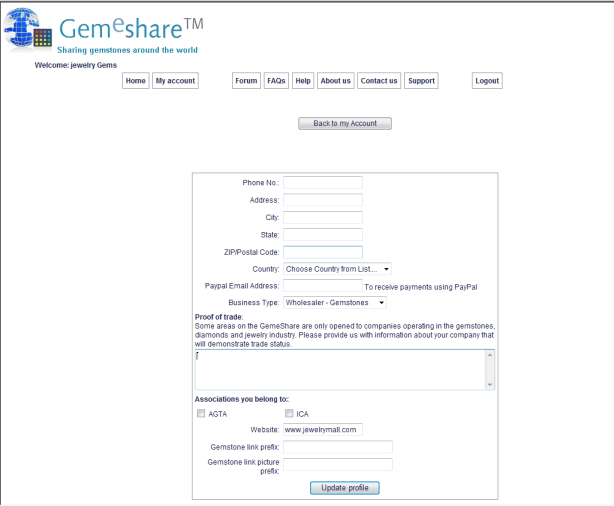
My Profile
A form is displayed for updating your profile.
|
Display important information for the partners.
|
GemeShare Boutique is a special zone of the GemeShare for single users that have some gemstones to include in the GemeShare
If you are a new user of GemeShare and want to include Gemstones Quickly.
Select Register, Partner Register fill in and submit the form.
After receiving the confirmation email complete the registration as a personal account.
Login the GemeShare with your username and password
Select My Account option
Update Partner Gems
Select Quick form
Fill in the form and save.
Your gemstone is already in the GemeShare, Search for your Gemstones in the GemeShare.
|
Download this manual in PDF format.
|
The GemeShare offers two trading area modes: Trade mode and Consumers mode.
Consumers mode:
The Consumers mode is for consumers, who wish to buy items in the GemeShare. The items are offered through retail stores managed by GemeShare's approved industry members. Each retail store contains PayPal secured payment and order interface.
Trade mode:
The Trade mode is an industry members-only area, restricted to manufacturers, dealers and retailers, who wish to buy and sell items between themselves. Each industry member may open a trade office and deal with its colleagues. Each trade office contains special purchase and communication features, such as memo requests and special price offering as well as PayPal secured payment and order interface.
In order to switch between the modes, click on the Switch Mode button at the top-right corner of the screen.
|
Gemeshare Video Tutorials
|
|